
Laptop Screen Black but Power Light On
Your laptop looks on, power light is glowing, maybe the keyboard lights up, but the screen stays black. This matters because you can waste hours trying random fixes when the problem is actually easy to isolate.
By the end of this guide you will know which type of black screen you have, what to try first, and how to test whether the fault is Windows, the internal display, or hardware. You will also know when to stop and book a repair to protect your data and avoid making the damage worse.
Note for South Africa:
- Load shedding and sudden power loss can corrupt updates and drivers, use a surge protector or UPS where possible.
- Parts availability and turnaround times vary, keep your serial number and model ready before contacting support.
- If you bought second-hand, check for signs of liquid damage or battery swelling before you keep troubleshooting.
At a glance:
- Work out whether the backlight is off, the image is just dim, or Windows is outputting to the wrong display.
- Do safe power steps first, disconnect peripherals, confirm the charger, then do a controlled forced restart.
- Use Windows shortcuts (graphics reset, display mode switch) to fix common driver and output issues.
- Test with an external monitor to separate an internal screen problem from a Windows or GPU problem.
Key takeaways:
- External monitor results are the fastest way to narrow down the cause.
- A faint image usually points to backlight or screen cable issues, not Windows.
- If you smell burning, see swelling, or had liquid exposure, stop and book a repair.
First, confirm what kind of black screen you have
Not all black screens are the same. Before you change settings or reinstall anything, take 60 seconds to identify which of these you are seeing.
Type 1: Screen is completely off (no glow at all)
If the panel looks like it has no backlight, the issue can be power to the display, a stuck sleep state, a firmware startup fault, or the laptop not actually booting. This is where blink codes, beeps, and fan behaviour matter.
Type 2: Screen is on but shows only black, or you can see a faint image
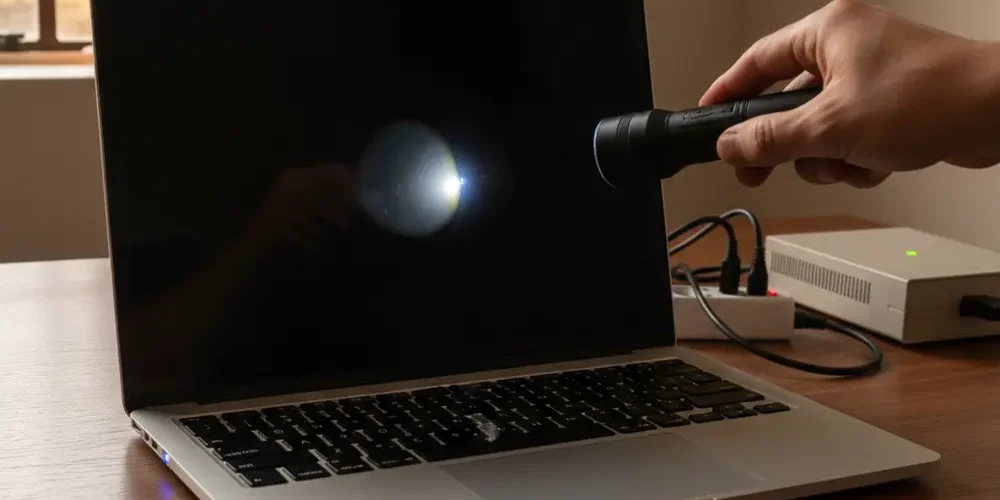
Do a quick flashlight test. In a dark room, shine a torch at an angle across the screen and look for a faint Windows login box or desktop shapes, a method often used to confirm backlight issues flashlight test for a black laptop screen.
Type 3: External monitor works but the laptop screen does not
This usually means the laptop is booting and the GPU is producing a picture. The common suspects become the internal panel, the backlight, the display cable in the hinge, a lid sensor issue, or a display mode setting.
Type 4: Keyboard shortcuts respond, but the screen stays black
If Caps Lock toggles, you hear Windows sounds, or Ctrl + Alt + Del reacts, the machine is alive and Windows is likely running. That points you toward display output or graphics driver issues, not a dead motherboard.
| What you notice | Most likely area | Best next test |
|---|---|---|
| No backlight glow at all | Power state, firmware, display power | Forced restart, then external monitor |
| Faint image with torch | Backlight, panel, cable | External monitor, then repair quote |
| External monitor shows Windows | Internal display path | Win + P, lid angle check, cable suspicion |
| No external display either | Boot or GPU level | Listen for beeps, blink codes, recovery steps |
Quick safety and power checks (charger, battery, peripherals, forced restart)
Start with steps that cannot make things worse. Many black screen cases are power delivery, static, or a stuck sleep state, especially after a sudden outage.
If you’re new
- Work on a table, not on a bed, overheating can complicate symptoms.
- Plug into wall power, avoid cheap multi-plugs if you suspect voltage spikes.
- Disconnect all USB devices, memory cards, and HDMI cables before restarting.
- Wait 60 seconds after unplugging before you power on again.
If you have done this before
- Try a known-good charger if you can borrow one with the same rating and connector.
- Remove the battery if your model has a removable battery.
- Check whether the laptop is stuck in sleep, press the power button once briefly, do not hold it yet.
- Listen for drive activity or Windows startup sound to confirm boot progress.
Controlled forced restart (the safe way)
If the screen is black and unresponsive, a forced restart is a normal first step. Hold the power button down until the laptop turns off, then wait a few seconds, then power it back on.
- Do not repeat forced shutdowns over and over, it can risk file system issues if Windows is mid-update.
- If the laptop keeps turning off by itself after a few seconds, stop and move to the repair section.
- If you see battery swelling, heat, a burning smell, or liquid residue, power off and do not charge it.
Common mistakes
- Assuming the laptop is dead because the screen is black, when it is actually outputting to an external display mode.
- Forgetting to disconnect a dock or USB-C hub that forces display routing.
- Holding the power button during first boot after a RAM change, some laptops take time for memory training.
- Opening the laptop immediately to reseat cables without first testing an external monitor.
- Jumping straight to reinstalling Windows before checking for a dim image or backlight failure.
Try display and graphics shortcuts in Windows
If Windows is running but the display pipeline is stuck, a few keyboard shortcuts can bring the picture back. These are quick, reversible steps, and they are worth trying even if you are not sure Windows is visible.
Reset the graphics driver (Windows)
Press Windows key + Ctrl + Shift + B. Microsoft notes this can reset the graphics driver, and you may hear a beep or see a brief flicker if it works Windows + Ctrl + Shift + B graphics reset shortcut.
Cycle display output mode
Press Windows key + P, then press P again a few times, then Enter. This can fix cases where the laptop is set to Second screen only after using a monitor or TV, a common scenario with docks.
Bring up the security screen and Task Manager
Press Ctrl + Alt + Del. If it responds, try opening Task Manager and restarting Windows Explorer, steps covered in Microsoft’s blank screen guidance Microsoft blank screen troubleshooting.
Test with an external monitor or TV to isolate screen vs GPU vs Windows
An external display test is the fastest branch in the troubleshooting flow. If you can get a picture externally, you have narrowed the problem to the internal display path or a display mode setting.
How to run the external monitor test
- Power the laptop off.
- Connect HDMI to a monitor or TV, or use the correct adapter for USB-C if your laptop supports display output.
- Power the external display on first.
- Power the laptop on and wait a minute.
If the external display is blank or not recognised, Intel recommends basic steps like checking cables and settings and keeping drivers updated, which also helps you rule out a bad cable Intel external display blank troubleshooting.
What the result means
- External works: focus on internal panel, backlight, cable, lid sensor, and Windows display mode.
- External does not work: focus on boot level issues, firmware, GPU, RAM seating, or motherboard faults.
- External works only sometimes: suspect a loose connection, failing adapter, or a driver issue after an update.
Reset steps that often work (EC reset, hard reset, battery disconnect where applicable)
After you have done safe power checks and tried shortcuts, the next level is a controller reset. Many laptops have an embedded controller that can get stuck after a crash or a power event.
Hard reset basics (brand neutral)
- Power off the laptop.
- Unplug the charger.
- If the battery is removable, remove it.
- Hold the power button down for a while to drain residual power.
- Reconnect power, then try boot again.
This is a common, conservative step recommended across manufacturers, and it is usually the safest reset before any OS repair.
ASUS: no display but power light is on
ASUS has an official troubleshooting page for this exact symptom, and it includes an embedded controller reset method using a long power button press on supported models ASUS no display but power light on. ASUS also notes that after certain hardware changes, the laptop may take time on first boot for memory training, so avoid interrupting it too quickly memory training black screen on first boot.
Dell: black screen when switching back from external to internal
If your Dell was on a dock or external monitor, there is a documented issue where the internal panel can remain black when switching back. Dell’s knowledge base notes a workaround that includes restarting using Ctrl + Alt + Del, and it points to model support pages for updates Dell black screen when switching from external to internal display.
If the screen is still black, use Windows Recovery (Safe Mode, Startup Repair, driver rollback)
If you suspect a Windows update or driver change, recovery tools can help without immediately wiping your data. The goal is to boot in a minimal mode, then undo the change that caused the blank screen.
How to reach Windows Recovery Environment when you cannot see the screen
Microsoft documents using Windows Recovery Environment to reach Safe Mode and repair options Boot to Safe Mode via Windows Recovery Environment. If your screen is black, use an external monitor if possible to see the recovery menus.
What to do inside recovery
- Try Startup Repair first, it is the least disruptive.
- Try Safe Mode, then roll back or reinstall the graphics driver.
- If the issue started after an update, uninstall the most recent update where available.
- Avoid Reset this PC unless you have backed up data, because it can remove apps and settings.
Data safety before deeper Windows actions
If the laptop boots on an external monitor, consider backing up important files before you do repairs. If it does not boot reliably, a repair shop can often remove the SSD and copy data, but do not assume this is always possible if the drive is encrypted.
If you need help with data-first troubleshooting, use our contact page contact our team.
Manufacturer clues, beep and blink codes, and what they usually point to
Blink codes and beeps are designed to tell you whether the laptop is failing before Windows even loads. The meanings are model-specific, so treat them as a strong hint, not a final diagnosis.
HP: Caps Lock blinking
HP community threads often point users to official LED or beep code references, and to BIOS recovery steps when certain blink patterns appear HP Caps Lock blink code black screen. Another solved thread emphasises that persistent codes can indicate service is needed HP LED and beep codes for startup issues.
- Count the blinks carefully, then search your exact model and the blink count on the official support site.
- If the laptop does not respond to keys at all and the code repeats, assume pre-boot fault.
- If you recently had a power event, firmware and controller resets are worth trying once.
MacBooks (for completeness)
If you are on a Mac, Apple provides model-safe steps for blank screens at startup, including using macOS Recovery and Disk Utility Apple Mac blank screen at startup. Apple also covers cases where the screen goes black due to sleep or low power, which can look like a fault when it is not Mac screen goes black sleep vs power issue.
Troubleshooting flow: a simple decision path
Use this flow in order. Stop as soon as you hit a clear answer.
- Is the laptop clearly powering on? Fan noise, power light, keyboard light, or charging light. If no, test charger and power source, then book a repair.
- Does Caps Lock toggle? If yes, the system is likely running, move to display shortcuts and external monitor. If no, suspect pre-boot fault, check blink codes and listen for beeps.
- Flashlight test shows a faint image? If yes, suspect backlight or panel, external monitor is for confirmation, then repair quote.
- External monitor shows Windows? If yes, use Windows + P and check for internal display faults. If no, move to recovery and hardware checks.
- Recovery options available? If yes, try Startup Repair, then Safe Mode and driver rollback. If no, stop and book a diagnostic.
When to stop troubleshooting and book a repair
There is a point where further DIY steps increase risk, especially if you start opening the laptop, forcing power cycles, or reinstalling an OS without backups. If you are within warranty, it is usually better to stop early and follow official support paths.
Strong signs it is hardware and needs a workshop
- No display on the internal screen and no display on an external monitor.
- The laptop turns on then shuts off within seconds, repeatedly.
- Burning smell, visible corrosion, liquid spill history, or crackling sounds.
- Battery swelling, case bulging, or trackpad lifting.
- Display changes when you move the lid angle, a common clue for a damaged hinge cable.
Cost sense check for South Africa
Do not guess repair costs. Ask for a written quote, confirm whether diagnostics are refundable, and check whether parts are original, refurbished, or third-party. If you are deciding whether to repair or replace, we can help you evaluate resale options for a non-working device via Sell Your Items sell your items.
If you run mining or home lab gear, power quality matters. Consider surge protection and backup power maintenance, and if you need help with power gear you can check our professional inverter services professional inverter repairs.
Frequently asked questions
My laptop screen is black but the power light is on, is it definitely the screen?
No. It can be Windows outputting to the wrong display, a stuck graphics driver, a backlight fault, or a pre-boot issue. Use the flashlight test and an external monitor test to narrow it down before you assume the panel is dead.
What should I expect when I press Windows + Ctrl + Shift + B?
On supported Windows systems it can reset the graphics driver, and you might hear a beep or see a brief flicker. If nothing happens, it does not prove the shortcut failed, it may just mean Windows is not running or the keyboard input is not being processed.
External monitor works but the laptop screen stays black, what is the most common cause?
Often it is the internal display path, such as a failing panel, a backlight issue, or a loose or damaged display cable in the hinge. It can also be a display mode setting, so try Windows + P and check Windows display settings if you can see them externally.
Can load shedding cause a black screen problem?
It can contribute indirectly. Sudden power loss can interrupt updates, leave drivers in a bad state, or trigger controller glitches, which is why safe power steps and graphics reset shortcuts are worth trying first.
Should I reinstall Windows to fix a black screen?
Not as a first step. Try safe power checks, shortcuts, external display testing, and Windows Recovery options like Startup Repair and Safe Mode first. Reinstalling or resetting can risk data loss, so back up your files before you take that route.
Next steps and quick summary
- Identify the black screen type, off, dim, or wrong display output.
- Do safe power steps, disconnect peripherals, then do one controlled forced restart.
- Try Windows shortcuts, then test an external monitor to isolate the fault.
- If you see hardware danger signs, stop and book a diagnostic.
If you want help choosing between repair, resale, or upgrade paths, browse our shop for parts and tech accessories our shop and reach us any time contact us.
This is educational content, not financial advice.

