
Battery Plugged In Not Charging (Windows 11)
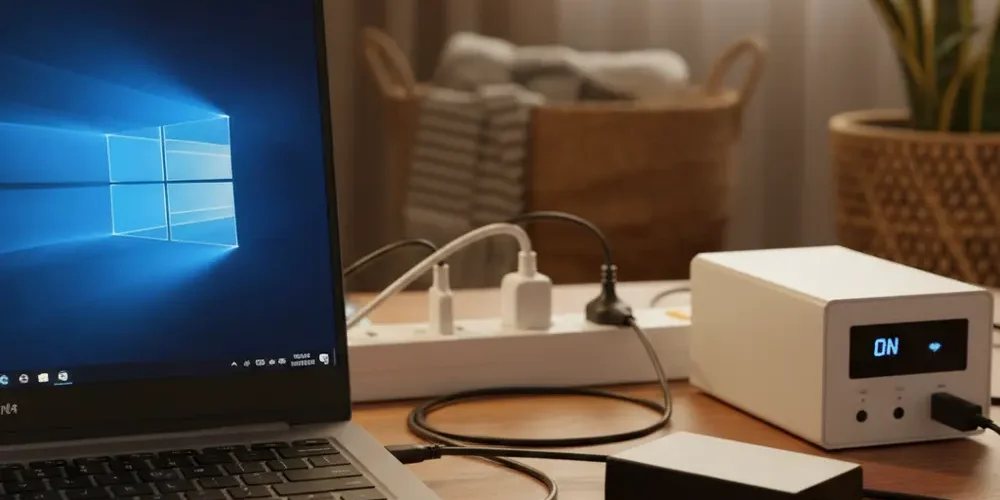
Windows 11 saying Plugged in, not charging is frustrating because it looks like a failure, but it is not always a fault. The fix can be as simple as a charge limit setting, the wrong USB-C cable, or unstable power after load-shedding.
By the end of this guide you will be able to tell whether you are dealing with an intentional charge cap, insufficient power input, a Windows driver reporting issue, or a real hardware fault. You will also have a clear point where you should stop troubleshooting and book a repair, or consider selling the device as-is via our sell your items page.
Note for South Africa:
- Test a known-good wall outlet if you can, not a loose socket or a tired multi-plug, especially after load-shedding or a surge.
- UPS and inverter outputs can be limited, noisy, or voltage-saggy under load, which may run the laptop but prevent charging.
- Long extension leads, daisy-chained adaptors, and shared circuits can cause intermittent charging and heat at the plug.
At a glance:
- If charging stops at 60% or 80%, it is often a charge limit feature, not a dead battery.
- If the laptop runs but the percentage never increases, suspect under-watt power, the wrong USB-C PD port or cable, or high load.
- If charging resumes when the laptop is off and cool, suspect heat, power budget limits, or a worn battery.
- If the plug feels loose, gets hot, or charging is intermittent, stop and book a repair before it damages the port or board.
Key takeaways:
- Start with power source and charger basics before changing Windows settings.
- Windows 11 smart charging and OEM battery health modes can intentionally cap charging.
- A battery report helps you separate wear from a settings or power delivery problem.
What "Plugged in, not charging" means in Windows 11 (and when it is normal)
Windows 11 uses battery firmware, charger negotiation, and manufacturer features to decide whether to actually push charge into the battery. Sometimes Windows shows that the charger is connected, but the system is intentionally holding the battery at a set level.
It can be normal when a charge limit feature is enabled, when the laptop is too hot, or when the adapter can only supply enough power to run the laptop but not enough to charge it at the same time. It can also be a reporting problem where the battery is charging slowly, but the percentage does not move for a while.
- Normal or expected: You see a cap like 60% or 80%, you see a heart icon, or charging resumes later on its own.
- Needs investigation: Percentage never increases over hours, charging is intermittent, the plug gets hot, or the charger only works at a certain angle.
- Stop and escalate: Burning smell, sparking, swelling battery, or the laptop shuts off when the charger is nudged.
If you are here because a mining rig controller laptop or a workstation used for GPU tuning is acting up, remember that heavy CPU and GPU loads can pull enough power to prevent charging, even with a genuine charger.
Fast checks first, power source, cable, charger, port, and heat
Do the boring checks first, because they solve a large percentage of cases and they are low risk. The goal is to confirm stable input power and a clean physical connection before you spend time on drivers and BIOS.
Rule out the wall socket, power strip, UPS, and load-shedding side effects
Start by plugging directly into a known-good wall outlet, not a multi-plug or extension. If you normally charge through a UPS or inverter, test on mains power as well, then test on the UPS again, because some units struggle to supply peak draw and still charge a battery.
- Try a different wall socket in a different room, if possible.
- Remove the multi-plug and any travel adaptors.
- If you are on a UPS, check whether other devices cause it to dip or click when the laptop ramps up.
- After a power event, check if the charger brick smells burnt or has a buzzing sound.
If the laptop charges normally on a wall socket but not on your backup power setup, that is a strong sign your backup output is limited. If you need help testing and repairing backup power hardware, see our professional inverter repairs service.
Check charger wattage, correct adapter, and USB-C PD cable capability
Use the original charger if you still have it. A lower-watt charger can power the laptop, especially at idle, but it may not have enough headroom to charge the battery under load.
- Confirm the charger is the correct one for your laptop model, do not assume that matching the plug shape is enough.
- If it is USB-C charging, confirm you are using the correct USB-C port, some laptops have one PD port and other USB-C ports that do data only.
- Try another known-good USB-C PD charger if you have one, but do not guess on wattage.
USB-C charging is sensitive to cable capability. Some USB-C cables are fine for phones, but not for laptops, because they cannot safely carry higher current. For background on e-marker cables and higher power capability, see this example of a USB-C e-marker cable.
Inspect the charging port and look for overheating or thermal cut-off
Heat is a common reason charging pauses. If the laptop is hot, the battery is hot, or the charging area is hot, the device may reduce charge current or stop charging to protect itself.
- Shut down the laptop, unplug it, let it cool for 15 to 30 minutes, then try charging again.
- Check the charger tip or USB-C plug, it should be warm at most, not painfully hot.
- Look for lint, corrosion, or wobble in the port, but do not poke metal objects inside.
If the connector feels loose or charging works only when you hold the cable a certain way, treat it as a physical fault. Continued use can damage the port or the board side power circuit.
| Symptom | Most likely cause | Best next test |
|---|---|---|
| Stops at 60% or 80% | Charge limit feature | Check smart charging, OEM utility, BIOS |
| Runs on charger, % never rises | Under-watt power, wrong USB-C cable | Try original charger, correct PD port, known-good cable |
| Charges only when off | Heat, high load, power budget | Cool down, reduce load, check adapter rating |
| Intermittent, plug wiggle changes | Port or jack damage | Stop, book repair, avoid further strain |
| Sudden change after update | Driver or firmware state | Battery device reinstall, BIOS update review |
Windows 11 and manufacturer charge limits (Smart charging, 60% or 80% caps)
Charge limits are one of the most common reasons for plugged in not charging Windows 11 reports, especially on laptops that are plugged in most of the day. These features are designed to reduce battery wear by keeping the battery below 100% for long periods.
Windows may surface the behaviour, but the control often lives in the manufacturer utility, firmware, or both. Microsoft describes how Windows 11 Smart charging can cap charging and why it may not reach 100%.
Windows smart charging indicators and what to do if you need 100% today
On some devices, Windows shows a heart icon on the battery indicator when smart charging is active, which can look like a fault. Microsoft explains the heart icon on the battery in Windows 11 and that smart charging behaviour is device dependent.
- If you see a heart icon or a message about battery health, assume it may be intentional.
- Look for a quick toggle in your OEM app, not only in Windows settings.
- If you need 100% for travel, disable the limit temporarily, then turn it back on later.
If you cannot find a toggle in Windows, that is normal. Smart charging often hands control to the manufacturer, so you will need to use the OEM utility or BIOS options.
OEM utilities and BIOS settings that intentionally stop charging (HP, ASUS, Lenovo, others)
HP and ASUS are common examples, but most brands have some form of battery health mode. On HP business notebooks, features in HP Power Manager battery charge limit can stop charging at a chosen level.
On ASUS systems, ASUS Battery Health Charging includes modes that can hold a battery around 60% or 80% depending on the selected profile.
- Search your Start menu for your brand utility, for example Power Manager, Battery Health, Vantage, or MyASUS.
- Check BIOS settings for battery charge thresholds if the Windows app does not show anything.
- After changes, reboot once, then watch charging behaviour for at least 10 to 20 minutes.
If you manage laptops for a home office or small business, consider documenting battery threshold settings as part of your asset process. Our corporate IT asset disposal service can also help with consistent handling of business devices when it is time to retire them.
Software and firmware fixes (drivers, battery report, BIOS, EC reset)
If power and charge limit settings look fine, move to software and firmware checks. The goal here is to fix misreporting, reset stuck power states, and gather evidence about battery wear.
Common mistakes
- Uninstalling random drivers without noting what changed, then being unable to roll back.
- Updating BIOS during load-shedding without a stable power plan, which increases the risk of a failed update.
- Assuming every USB-C port supports charging, or assuming every USB-C cable supports laptop charging.
- Ignoring heat, then chasing software fixes while the laptop is thermal throttling.
- Continuing to wiggle a loose plug, which can turn a simple jack replacement into a board repair.
If you are new
- Start by testing another wall socket and the original charger.
- Take photos of battery icons, messages, and percentage behaviour before you change settings.
- Use Windows built-in tools first, then OEM tools.
- Keep changes one at a time, then test for 10 to 20 minutes.
- If anything smells hot or looks swollen, stop and get professional help.
If you have done this before
- Test charging in three states: idle on desktop, under load, and while shut down.
- Generate a battery report and compare design capacity to full charge capacity.
- Reinstall battery devices in Device Manager, then reboot and recheck behaviour.
- Confirm USB-C PD negotiation by testing a known-good PD charger and an e-marked cable.
- Consider an EC or power reset sequence recommended by your laptop OEM.
For a structured baseline, Microsoft has a general troubleshooting flow for devices like Surface, including checks for the correct power supply and steps to reinstall battery driver in Device Manager.
Step 1, check Windows power and accessories: unplug docks and high-draw USB devices, then test charging again. A bus-powered external drive, capture device, or USB hub can tip a borderline charger into no net charging.
Step 2, reinstall the battery related devices (safe, but be careful): open Device Manager, expand Batteries, uninstall the battery entries, then reboot to let Windows reinstall them. Follow Microsoft guidance for plugged in, not charging troubleshooting, and if you are on an ARM-based Windows device, read their warnings before removing anything.
Step 3, review BIOS and firmware updates: only install updates from your laptop manufacturer support site, and only when you have stable power. If you are unsure, ask a technician, because BIOS updates can be risky if interrupted.
Generate a Windows battery report and decide if the battery is worn out
A battery report helps you separate a worn battery from a settings issue. Windows can generate it using the powercfg tool, and Lifewire summarises how to generate a Windows 11 battery report and what the key fields mean.
- Open Windows Terminal or Command Prompt as administrator.
- Run: powercfg /batteryreport
- Open the generated HTML file location shown in the output.
- Compare Design capacity to Full charge capacity.
- If full charge capacity is much lower than design capacity, the battery is likely worn and may hit charge limits or drop quickly.
- If capacities look healthy but charging stalls, focus back on power delivery, heat, and charge limit settings.
- If the report shows irregular charge and discharge while plugged in, suspect an unstable charger, cable, port, or power source.
When a battery is worn, you often see symptoms like sudden drops, rapid percentage changes, or the laptop shutting down earlier than expected. A report will not prove a port fault, but it gives you useful evidence before you spend money.
Troubleshooting flow: yes-no decision path
Use this flow when the battery shows plugged in but does not charge, or the percentage stays stuck. Work from top to bottom and do not skip steps, because each step narrows the cause.
- Does it stop at a consistent cap like 60% or 80%? If yes, check smart charging and OEM battery health modes. If no, continue.
- Do you see a heart icon or battery health message? If yes, treat it as an intentional limit first and review why Windows may not charge to 100%. If no, continue.
- Does charging resume when the laptop is shut down and cool? If yes, suspect heat, high load, or power budget limits. Reduce load and improve cooling. If no, continue.
- Are you using USB-C charging? If yes, confirm the correct PD port, test a known-good PD charger, and test a higher-capability cable, because cable limits are real. If no, continue.
- Does it charge on a different wall socket with no multi-plug? If no, fix the power source and consider surge damage. If yes, continue.
- Does the connector feel loose or get hot? If yes, stop and book a repair, do not keep testing. If no, continue.
- Does reinstalling battery devices change anything after a reboot? If yes, it was a reporting or driver state issue. If no, continue.
- Does the battery report suggest major wear? If yes, price a battery replacement and compare it to the device value. If no, a board-level charging fault is possible and you should get a diagnostic.
If you want a second opinion, or you would rather not risk a BIOS update or a port issue, contact our team via contact us before spending money on parts.
When to stop troubleshooting and book a repair (battery, DC jack, motherboard power circuit)
Some charging issues are not worth extended DIY, especially if the machine is used daily for work or study. Ports, DC jacks, and motherboard charging circuits can fail, and repeated stress can make repairs more expensive.
- Book a repair now: charging cuts in and out when the cable moves, the port is visibly damaged, or the plug gets very hot.
- Stop using the device immediately: you see battery swelling, you smell burning, or you hear crackling near the connector.
- Consider replacement: the battery is worn and the cost of a genuine replacement plus labour is close to the value of the laptop.
If the laptop is older and you are weighing repair versus moving on, you can explore options in our shop or browse more troubleshooting content in insights.
Frequently asked questions
Why does my laptop say plugged in but the battery percentage stays the same?
It often means the laptop is using the adapter to run the system but not putting net charge into the battery. Common causes are a charge limit feature, an under-watt charger, a USB-C cable or port limitation, high load, or heat.
Is it bad to keep a laptop plugged in all the time on Windows 11?
It is not automatically bad, but staying at 100% for long periods can increase wear on many battery chemistries. That is why smart charging and OEM battery health modes may cap the charge below 100% when you are mostly plugged in.
My battery stops at 80%, is that a problem?
Not necessarily. Many laptops can be configured to stop at around 80% to extend battery lifespan, and it can look like a charging fault until you find the setting in the OEM utility or BIOS.
Can the wrong USB-C cable cause plugged in not charging on Windows 11?
Yes. Some USB-C cables cannot carry the current a laptop needs, even if they charge a phone. Testing with a known-good, higher-capability cable can quickly rule this out.
Should I uninstall the battery driver in Device Manager?
It is a common troubleshooting step and Windows usually reinstalls the device after a reboot, but you should follow official guidance and read any device-specific warnings first. If you are unsure, especially on uncommon hardware, get help rather than experimenting.
Summary:
- Check power source stability first, especially with multi-plugs, long extensions, UPS, and inverter setups.
- Rule out charge limits, smart charging, and OEM battery health modes if charging stops at a fixed percentage.
- For USB-C, confirm the correct PD port, charger capability, and cable capability.
- Use a Windows battery report to assess wear before you spend money.
- Stop and book a repair if charging is intermittent, loose, or hot at the connector.
This is educational content, not financial advice.

