
Laptop Fan Loud or Grinding
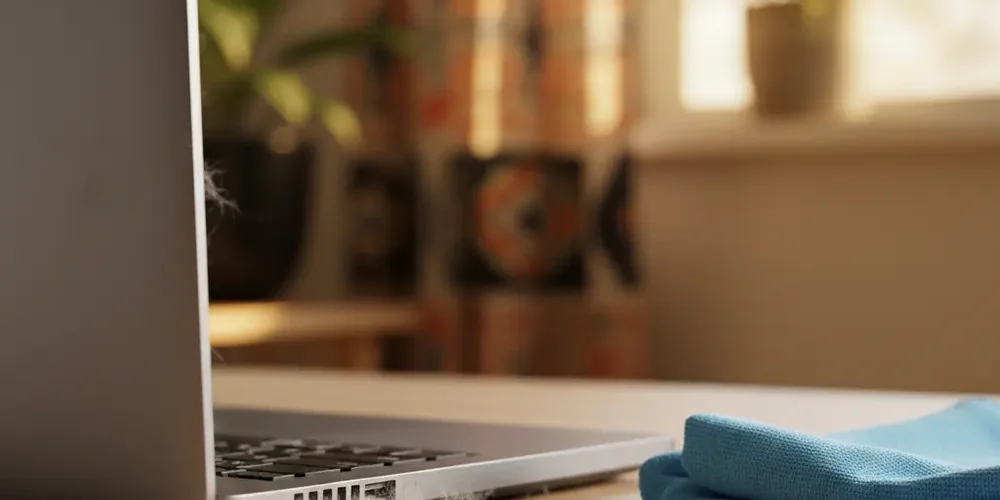
A laptop fan that suddenly gets loud, rattly, or grindy is not just annoying, it can be an early warning sign of overheating or a part that is starting to fail.
If you catch the cause early, you can often reduce noise, keep temperatures under control, and avoid a bigger repair.
This article helps you tell normal fan behaviour from a mechanical problem, using checks that are safe for home users.
By the end, you will know what to do right now, what to stop doing, and when it is time to book a repair or consider selling the laptop.
Note for South Africa:
- Hot summer rooms, small flats, and soft bedding surfaces can restrict airflow, so fan noise often shows up during everyday tasks.
- Load shedding and frequent power cycles can interrupt updates and indexing, which may lead to short periods of higher background activity after rebooting.
- Warranty turnaround can be slow, so recording a short noise video and your temperatures helps you get quicker, more accurate quotes.
At a glance:
- Whooshing fan noise under load is often normal, grinding or scraping usually is not.
- Check workload first, then airflow, then temperatures, before assuming hardware failure.
- If you smell burning, see sudden shutdowns, or the fan is not spinning, stop using the laptop and book a repair.
- Decide repair vs sell based on warranty status, age, and whether noise persists after safe cleaning and power tweaks.
Key takeaways:
- Most loud fan complaints start with heat from workload, blocked vents, or dust.
- Grinding, scraping, or repeated rattling points to debris, a loose part, or worn bearings and needs attention.
- Use safe external cleaning and software checks first, avoid blasting the fan with high-pressure air.
What a loud or grinding laptop fan usually means (and why it matters)
Fans get louder when your CPU or GPU gets hotter, because the system increases fan speed to protect the hardware.
That can be normal during video calls, Windows updates, game launches, or heavy browser use, especially on thin laptops.
A grinding, scraping, or rattling sound is different. It often suggests something physical is interfering with the fan, or the fan is wearing out.
Ignoring mechanical noise can lead to worse cooling, thermal throttling, and in some cases sudden shutdowns.
| Noise or symptom | What it often points to | What you should do first |
|---|---|---|
| Steady whoosh that rises and falls | Normal cooling response to heat | Check CPU usage and room airflow |
| Loud when idle | Background tasks, updates, dust, power mode | Task Manager check, power mode, vent cleaning |
| Rattle or ticking | Loose debris, loose fan, loose bottom cover | Power off, external inspection, book service if it persists |
| Grinding or scraping | Debris in fan path or failing bearings | Stop using if severe, avoid forcing the fan, arrange repair |
| High temps plus slow laptop | Thermal throttling from poor cooling | Check vents, clean, consider technician cleaning |
First, rule out the normal reasons a fan gets loud
Before you assume something is broken, do a quick reality check. A fan can sound loud because it is doing its job in a hot, restricted, or busy situation.
These checks also help you describe the problem clearly if you end up needing a technician.
- When does it happen, startup, idle, charging, gaming, or video calls?
- Does the noise change if you lift the laptop for better airflow?
- Does it stop after 10 to 30 minutes, or does it keep getting worse?
- Is it a smooth airflow sound, or a physical rattle, tick, scrape, or grind?
Heavy CPU or background tasks, updates, and indexing
Windows can trigger short bursts of background work, especially after updates, driver installs, or the first few hours after a fresh setup. Microsoft specifically notes that background setup and updates can temporarily increase fan activity, and that Task Manager is a good place to check what is using CPU Microsoft guidance on fan noise and Windows power mode.
Open Task Manager and sort by CPU, then look for a process sitting unusually high for several minutes. Browser tabs, Teams or Zoom, antivirus scans, cloud sync tools, and game launchers are common culprits.
If you see a spike right after boot, give it 10 to 20 minutes, then check again. If it stays high every day, you have likely found the reason the fan is loud when you are not doing much.
- Tip: make a quick screen recording of the Task Manager CPU list and a short audio clip of the fan, it helps with remote troubleshooting.
Hot room, blocked vents, soft surfaces, and airflow problems
Ambient temperature and blocked vents matter more than most people expect, especially on thin-and-light laptops. Apple highlights that fans can run faster in warmer environments, and that using the device on a hard, flat surface helps keep ventilation clear Apple support on fan noise and ventilation.
In South Africa, a laptop used on a bed, couch, or blanket often ends up pulling in lint and dust quickly. That combination restricts airflow and forces higher fan speed even at light use.
- Use a hard surface, desk, or a rigid lap desk.
- Keep the rear and side vents clear, do not push the back edge against a wall.
- If you are charging while working, expect more heat, some laptops run hotter on mains power.
Noises that suggest a mechanical problem (rattle, scraping, grinding)
A smooth whoosh is airflow. A rattle, tick, or grind is usually something physical, and it tends to get worse over time.
Grinding matters because it can mean the fan is struggling to spin freely. If the fan slows down or stops, temperatures can rise fast.
Lenovo notes that rattling can indicate a loose or damaged fan, and that grinding can indicate a failing fan that should be replaced promptly to avoid overheating risk Lenovo explanation of grinding fan noise.
Dust or debris in the fan path vs worn bearings vs a loose part
From a home user perspective, you do not need to diagnose the exact internal failure. You do need to separate the likely categories, because the safe next step differs.
- Debris in the fan path: often a sudden change, like a new scraping sound after the laptop was moved, bumped, or used on fabric.
- Worn bearings: often a gradual increase in grinding or whining over weeks, sometimes worse when the laptop warms up.
- Loose part: can be a rattle that changes when you tilt the laptop, or when the fan changes speed.
There is also a different noise people confuse with a fan. Coil whine is a high-pitched electrical squeal that can change with scrolling, charging, or FPS, and it is not a scraping sound. If the noise stops when the fan stops, it is likely fan-related.
What to do right now, safe checks you can do at home
The goal is to reduce heat and confirm whether you are dealing with normal cooling or a mechanical issue. Start with the steps that do not require opening the laptop.
If your laptop is still under warranty, treat opening the bottom cover as a last resort. Some manufacturers and retailers can be strict about warranty seals or signs of tampering, so check your warranty terms before you open anything.
Basic safety, powering down, and what not to do with compressed air
If you hear grinding, start by powering down fully. Do not keep cycling the fan on and off by repeatedly waking the laptop to test it.
For cleaning, focus on external vents and gentle airflow. ASUS warns against using powerful airflow devices like air compressors because they can damage fan blades or cause issues ASUS South Africa overheating and fan troubleshooting guide.
- Shut down, unplug, and let the laptop cool for a few minutes.
- Use a soft brush on the vent grille and a microfiber cloth on the chassis.
- If you use canned air, use short bursts and keep the nozzle a safe distance away.
- Avoid a workshop compressor, and avoid forcing the fan to spin at very high speed.
- Do not drip liquid cleaners into vents.
Temperature checks and simple Windows power mode tweaks
You do not need exact temperature numbers to make good decisions, but you do need trend awareness. If temperatures climb quickly at light use and the fan cannot settle, something is off.
On Windows 11, check your Power mode setting. Microsoft points out that a Recommended power mode can reduce heat and fan noise compared with Best performance, and suggests checking Task Manager for heavy CPU apps set Windows power mode to Recommended to reduce fan noise.
- Settings, System, Power and battery, Power mode, choose Recommended (or Balanced, depending on your device wording).
- Close obvious heavy apps, then re-check fan behaviour for 10 minutes.
- Check Task Manager, CPU and Memory tabs, for persistent high usage.
If you have an OEM tool installed, use it. ASUS notes that MyASUS can run hardware diagnostics and also emphasises keeping BIOS, Windows, and drivers updated MyASUS fan hardware diagnostics.
Troubleshooting flow: loud vs grinding fan
Use this flow when you want a simple, repeatable path. It is designed to keep you safe and avoid unnecessary disassembly.
- Identify the noise: whoosh, buzz, rattle, scrape, or grind.
- Check workload: open Task Manager, sort by CPU, confirm if anything is stuck high. Intel also recommends checking unexpected background processes early in noisy fan troubleshooting Intel guide to troubleshooting a noisy fan.
- Check airflow: move to a hard surface, clear vents, try a cooler room if possible.
- Do a safe external clean: brush and gentle air at vents, no compressor.
- Re-test for 10 minutes: if it is just loud under load and settles at idle, you likely have a normal cooling case.
- Stop now branch: if you hear grinding, smell burning, see thermal warnings, or the laptop repeatedly shuts down, stop using it and book a repair.
- Decision: if noise persists after the safe steps, choose repair, replace, or sell based on age, warranty, and overall condition.
Common mistakes
Most fan problems get worse because people try a risky fix first. These are the mistakes to avoid.
- Blasting vents with a high-pressure compressor.
- Using the laptop on a bed, blanket, or thick couch cushion for hours.
- Ignoring a new grinding noise because performance still feels normal.
- Opening the laptop while it is still under warranty, without checking terms first.
- Trying random BIOS or fan-control tweaks without knowing how to revert them.
Quick orientation before you continue
These mini checklists help you pick the right depth of troubleshooting for your comfort level.
If you’re new
- Start with Task Manager, power mode, and airflow changes.
- Do only external cleaning around vents and ports.
- Record a 10 second video of the noise and note when it happens.
- If you see shutdowns or thermal warnings, stop and book a repair.
If you have done this before
- Compare noise on battery vs charging, and idle vs load.
- Run OEM diagnostics if available, and check for firmware and driver updates.
- Inspect vents for visible lint mats that indicate internal dust buildup.
- Consider professional internal cleaning if you live in a dusty area or have pets.
- Avoid undervolting and repasting unless you are confident and your warranty situation is clear.
When to stop using the laptop and book a repair
Some symptoms mean you should stop troubleshooting and prevent further damage. Grinding is one of them, especially if it is loud, persistent, or getting worse.
Also pay attention to repeated overheating behaviour. A laptop that throttles heavily, runs extremely hot to the touch, or shuts down unexpectedly may be protecting itself.
Red flags, warranty considerations, and what a technician will typically check
- Stop and switch off: burning smell, smoke, sudden power offs, or a fan that stops spinning.
- Book a repair: grinding that continues after external cleaning and airflow checks.
- Warranty first: if you are within warranty, start with the brand support route or the store you bought from, before opening anything.
- What a technician checks: fan condition, dust buildup, heatsink contact, thermal paste condition, and whether the fan curve or BIOS settings are behaving normally. Intel notes that heatsink seating and thermal interface material can be deeper causes of noisy fans and overheating thermal paste and heatsink seating as deeper causes.
If you want a second opinion or you are not sure whether it is worth repairing, you can ask for an assessment via our support channels at Sell Your PC contact.
Repair vs replace vs sell, a practical decision for South Africans
In South Africa, the best choice is not always the cheapest repair on paper. Turnaround time, parts availability, and the overall condition of the laptop matter just as much.
Because prices and parts costs change often, this article avoids quoting numbers. Instead, use a simple decision frame and get two quotes when possible.
- Repair makes sense if the laptop is under warranty, the rest of the device is in good condition, and the noise is clearly fan-related.
- Replace makes sense if you are also facing battery failure, hinge damage, or performance is already limiting your daily work.
- Sell as-is makes sense if the laptop is older, the repair is uncertain, or you want to put the money towards a more reliable device.
If you are considering selling, start by checking typical trade-in categories and what we buy on Sell Your Items. If you need a replacement device, browse options on the Sell Your PC shop.
If you are managing multiple devices for a household or small business and want a clean, compliant disposal path for dead or unreliable laptops, read about corporate IT asset disposal.
Frequently asked questions
Is a loud laptop fan always a problem?
No. Fans often ramp up during updates, video calls, gaming, or heavy browsing, because fan speed follows temperature. If the noise is a smooth whoosh and it settles after the workload drops, it can be normal behaviour.
What does a grinding laptop fan sound mean?
Grinding or scraping usually suggests a mechanical issue, like debris contacting the fan blades or worn fan bearings. If it is persistent, it is safer to stop using the laptop and book a repair than to keep testing it.
How can I tell if it is the fan or coil whine?
Fan noise is airflow, and it usually changes clearly with temperature and fan speed. Coil whine is typically a high-pitched electrical squeal that can change with charging, scrolling, or FPS, and may still happen even when the fan is not spinning.
Can I clean my laptop fan with compressed air?
You can do gentle external vent cleaning, but avoid powerful air compressors. ASUS specifically warns against powerful airflow devices like air compressors because they can cause damage safe laptop vent cleaning guidance.
Which Windows setting can reduce fan noise quickly?
On many Windows 11 laptops, setting Power mode to Recommended (or Balanced) can reduce heat and fan speed compared with Best performance. Microsoft also recommends checking Task Manager for apps using heavy CPU check Task Manager for heavy CPU apps.
Short summary
- Start by identifying the noise type, whoosh vs rattle vs grind.
- Check workload and Windows power mode before assuming hardware failure.
- Improve airflow and do safe external vent cleaning, avoid high-pressure air.
- Grinding, burning smells, repeated shutdowns, or a fan not spinning are stop-now signs.
- If repair is not worth it, selling as-is can be the most practical option.
This is educational content, not financial advice.

