
Hard Drive Destruction Methods Explained
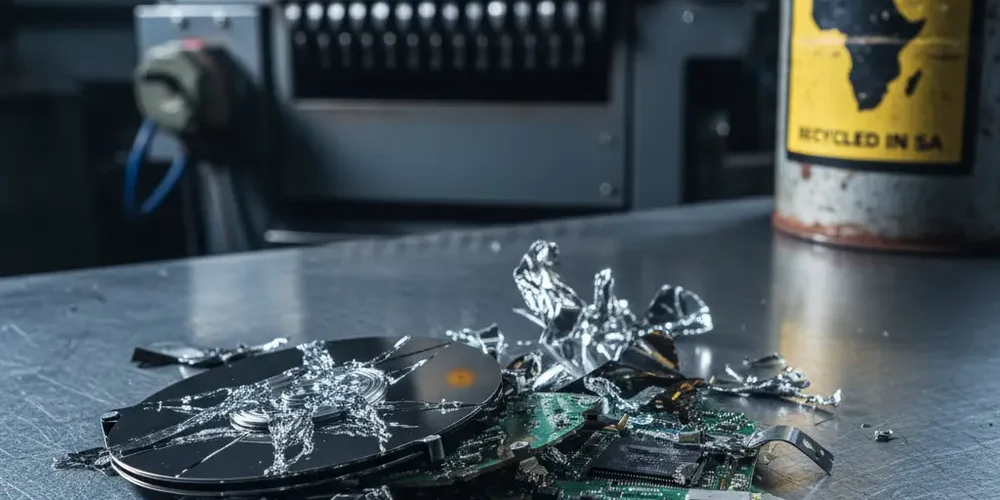
A decommissioned hard drive sitting in a storage room is not a retired asset, it is an open liability. For South African organisations subject to the Protection of Personal Information Act, inadequate data destruction is a compliance failure that the Information Regulator of South Africa has the authority to investigate and act on.
This article breaks down the three primary hard drive destruction methods, explains how to match each method to your media type and data classification, and sets out what a credible corporate IT asset disposal programme in South Africa should look like. By the end, you will have a practical framework to guide policy decisions and vendor selection.
Note for South Africa:
- POPIA does not prescribe a specific technical destruction method, but it holds your organisation responsible for ensuring destruction is adequate. The method you choose must match your threat model.
- Load shedding is a real operational risk for on-site wiping and degaussing. A power interruption mid-wipe can leave data partially intact. Plan accordingly.
- Certified ITAD services with both data destruction and e-waste licences are primarily concentrated in Johannesburg, Cape Town, and Durban. Organisations in secondary metros may face service availability constraints.
At a glance:
- Shredding is the highest-assurance method and works on all media types, but it is irreversible and introduces e-waste obligations.
- Degaussing only works on magnetic media (HDDs and tape). It has zero effect on SSDs or NVMe drives.
- Software wiping is cost-effective for drives that will be reused, but it cannot reach remapped or bad sectors on enterprise drives.
- POPIA and NEMWA both apply to hard drive disposal in South Africa, creating a dual compliance obligation for IT decision-makers.
Key takeaways:
- Your destruction method must be matched to media type first, then to data classification level.
- A certificate of destruction with drive serial numbers is the minimum audit trail for any regulated organisation.
- Vendors must hold both data destruction credentials and a licensed e-waste handling approval under South African environmental law.
Why Hard Drive Destruction Is a Compliance Requirement, Not Just Best Practice
When a hard drive reaches end of life, the data it carries does not disappear on its own. Formatted drives, even overwritten ones, can yield recoverable data under forensic examination if the process was not performed correctly. For organisations holding personal information, financial records, or regulated data, this represents a direct liability.
The Protection of Personal Information Act requires that personal information be destroyed or de-identified once it is no longer needed for the purpose it was collected. Crucially, the Act does not specify how. That flexibility places the burden of adequacy squarely on the responsible party, which is your organisation.
POPIA, GDPR Exposure, and What South African Organisations Are Liable For
POPIA is the primary local compliance driver. The Information Regulator can issue enforcement notices, conduct investigations, and impose penalties for inadequate destruction of personal information. Responsible parties remain liable even if a third-party vendor handled the disposal, making vendor due diligence a legal necessity, not a preference.
Organisations with European clients or EU resident data face a second layer of obligation. Under GDPR and its application to South African businesses, the right to erasure under Article 17 has direct implications for media destruction policy. GDPR is generally more prescriptive than POPIA on documentation and process, so where both apply, align to the higher standard.
South African organisations holding ISO 27001 certification are also expected to align with ISO 27040, which provides specific technical controls for storage media disposal and supports a structured, auditable destruction approach.
The Three Primary Hard Drive Destruction Methods
There are three established methods for destroying data on storage media. Each has a different security profile, cost structure, and applicability depending on the media type and what happens to the asset after destruction.
Physical Shredding – When, Why, and What It Cannot Guarantee
Physical shredding involves feeding the drive into an industrial shredder that reduces it to small fragments. It is the only method that works reliably across all storage media types, including HDDs, SSDs, NVMe drives, and magnetic tape. Once shredded, the drive cannot be reused or recovered.
What shredding cannot guarantee on its own is chain-of-custody integrity before the drive reaches the shredder. A drive that is lost or intercepted in transit before destruction is still a liability. This is why on-site shredding, where the shredder comes to your premises, reduces risk compared to transporting drives to an off-site facility.
Shredding also triggers e-waste obligations. Under South Africa's National Environmental Management: Waste Act and the Extended Producer Responsibility framework, shredded electronic components must be processed by a licensed waste handler. Your destruction vendor must be able to demonstrate compliance with both data destruction and South Africa e-waste disposal regulations.
Degaussing – How Magnetic Erasure Works and Where It Falls Short
Degaussing exposes a drive to a powerful magnetic field that randomises the magnetic domains storing data, rendering it unreadable. It is fast, effective on magnetic media, and leaves no readable data. However, it permanently disables the drive, so the asset cannot be resold or reused.
The critical limitation is that degaussing has zero effect on SSDs, NVMe drives, or any flash-based storage media. This is confirmed by NIST SP 800-88 media sanitisation guidelines, the globally referenced standard for media sanitisation. Flash memory does not rely on magnetic domains, so a degausser simply does nothing to the data stored on it.
In South Africa, load shedding adds a practical risk to on-site degaussing. If power is interrupted during a batch degaussing run, operators need a clear procedure for flagging and re-processing drives that may not have completed the cycle.
Software Wiping and Certified Data Sanitisation – Standards and Limitations
Software wiping overwrites the data on a drive with patterns of zeros, ones, or random data, making the original content unreadable. Under NIST SP 800-88, a single overwrite pass is considered sufficient for modern high-density HDDs under most threat models, superseding older multi-pass standards such as DoD 5220.22-M.
The key limitation is coverage. Software wiping cannot reliably reach remapped sectors, bad blocks, or firmware-level reserved areas on enterprise SSDs and high-density HDDs. For SSDs that will be reused rather than destroyed, cryptographic erasure is the preferred approach, as it destroys the encryption key that protects the data without degrading flash cells through repeated overwriting.
Wiping also requires a functioning drive. A drive with mechanical failure or unreadable sectors cannot be reliably wiped through software, which means physical destruction becomes the only option. Any organisation using software wiping as its primary method must have a documented escalation path for drives that fail the wipe verification process.
HDD vs SSD vs NVMe – Why Destruction Method Varies by Media Type
One of the most common policy errors is applying a single destruction method across a mixed fleet of storage media. The correct method depends entirely on the physical technology of the drive.
| Media Type | Shredding | Degaussing | Software Wipe | Cryptographic Erase |
|---|---|---|---|---|
| HDD (magnetic) | Effective | Effective | Effective (single pass) | Where self-encrypting |
| SSD (NAND flash) | Effective | No effect | Unreliable on enterprise SSDs | Preferred for reuse |
| NVMe (PCIe flash) | Effective | No effect | Unreliable | Preferred for reuse |
| Magnetic Tape | Effective | Effective | Not applicable | Not applicable |
Many South African organisations run mixed fleets of HDDs, SSDs, and older magnetic tape for backup. A destruction policy that only addresses one media type is not fit for purpose. Your policy must cover each media type explicitly, with approved methods and escalation procedures for each.
Comparing Methods: Security Level, Cost, Auditability, and Environmental Impact
Selecting the right method involves balancing four practical considerations. The table below gives you a high-level comparison to anchor your policy decisions.
| Method | Security Level | Asset Reuse Possible | Audit Trail | E-Waste Risk |
|---|---|---|---|---|
| Physical Shredding | Highest | No | Certificate of destruction required | High – licensed handler needed |
| Degaussing | High (magnetic only) | No | Certificate recommended | Moderate – drive still intact |
| Software Wiping | Medium to high | Yes | Wipe report with verification | Low – drive remains functional |
| Cryptographic Erase | High (where supported) | Yes | Erase log recommended | Low – drive remains functional |
From a cost perspective, software wiping is typically the lowest direct cost per drive, especially where the asset will be resold or donated. Shredding carries a higher per-unit cost and introduces e-waste handling fees. Request itemised quotes from vendors to understand the full cost of each approach for your specific fleet size and composition. Do not compare headline prices without accounting for certification and e-waste compliance costs.
What a Credible Hard Drive Destruction Service in South Africa Should Provide
Not all vendors offering hard drive destruction in South Africa operate to the same standard. Before engaging any service provider, verify the following.
- Certificate of destruction – Should include individual drive serial numbers, the destruction method used, the date, and an authorised signatory. A generic certificate without serial numbers is not adequate for audit purposes.
- E-waste licence – The vendor must hold a valid licence under South African environmental legislation to handle and process electronic waste. Ask for documentary proof.
- On-site option – For highly classified or regulated data, insist on on-site destruction. This eliminates chain-of-custody risk during transport.
- Method transparency – A credible vendor will tell you exactly how they destroy each media type and be able to demonstrate compliance with recognised standards such as NIST SP 800-88.
- Insurance and liability – The vendor's contract should include liability clauses for data breaches arising from inadequate destruction on their side.
- Reference checks and site visits – For large-volume or ongoing programmes, conduct a site visit and request references from comparable clients before signing an agreement.
If you are in a secondary metro outside Johannesburg, Cape Town, or Durban, certified service availability may be limited. In those cases, evaluate whether a scheduled on-site visit from a major-metro provider is more appropriate than using a local vendor without verifiable credentials. Our professional services team can advise on suitable options for your region.
Building an End-of-Life Data Destruction Policy for Your Organisation
A corporate data destruction policy is the document that closes the gap between legal obligation and operational practice. Policy gaps, not technical failures, are typically the primary breach risk during IT asset disposal. Here is a structured approach to building one.
Destruction Method Decision Tree
Use the following decision path to determine the correct approach for each asset at end of life.
- Identify media type – HDD, SSD, NVMe, or tape. This eliminates degaussing as an option for anything that is not magnetic.
- Classify the data – Public, confidential, or regulated or top secret. Higher classification requires higher-assurance methods. Regulated data should default to physical destruction unless cryptographic erasure is confirmed as compliant by your legal team.
- Determine asset fate – Will the drive be resold, donated, or fully disposed of? If reuse is intended, software wiping or cryptographic erasure may be appropriate for lower-classification data on HDDs and SSDs respectively. If disposal is final, physical destruction is the cleanest option.
- Assess audit requirements – Does your organisation require a certificate of destruction for compliance, audit, or client contractual purposes? If yes, only methods with documented certification output qualify.
- Select method and vendor – Match the above to an approved method and a certified vendor. For any regulated, top-secret, or dual POPIA/GDPR scenario, default to on-site physical shredding with a full certificate of destruction.
Policy Components Checklist
- Asset register with media type recorded at procurement stage
- Data classification policy linked to destruction method requirements
- Approved vendor list with verified credentials for each location
- Chain-of-custody log from decommission to certificate of destruction
- Escalation procedure for drives that cannot be wiped (mechanical failure, bad sectors)
- Regular policy review schedule to account for changes in media technology and regulatory guidance
Common Mistakes to Avoid
- Applying the same method to all media types – Degaussing SSDs or wiping tape are both ineffective. Always identify the media type first.
- Accepting a generic certificate of destruction – Without individual serial numbers, the certificate cannot be matched to specific assets in an audit.
- Assuming formatting equals destruction – A standard format or factory reset does not remove data. It removes the file index. The data remains recoverable.
- Ignoring e-waste obligations – Physical destruction without a licensed waste handler puts your organisation in breach of South African environmental law, separate from any POPIA exposure.
- Skipping load shedding contingency planning – A power cut mid-wipe or mid-degauss leaves drives in an indeterminate state. Your procedure must account for this.
- Not including third-party operators in your policy – Under POPIA, your organisation remains responsible for how a service provider handles your data. Vendor contracts must include compliance representations.
If You Are New to IT Asset Disposal Policy
- Start with a full audit of your current storage media fleet. Know what media types you have before you write a method into policy.
- Read the NIST SP 800-88 guidelines. They are freely available and give you a clear, internationally recognised framework to anchor your policy.
- Contact the Information Regulator of South Africa website for guidance notes on POPIA obligations related to data destruction.
- Start with physical shredding for high-classification or regulated data. It is the lowest-risk starting point while you build out a more nuanced policy.
- Do not engage any vendor without first requesting their certificate of destruction template and e-waste licence number.
If You Have Done This Before
- Review whether your existing policy covers NVMe drives and SSDs explicitly. Many older policies were written when HDD was the dominant media type.
- If your organisation has EU client exposure, check whether your destruction certificates and audit trails meet GDPR Article 17 documentation requirements, not just POPIA.
- Evaluate whether your current vendor provides on-site destruction as an option for your most sensitive assets. Off-site transport of classified drives is an often-overlooked risk vector.
- Confirm your vendor's e-waste licence is current and covers the specific waste streams your fleet generates.
- Consider aligning your policy explicitly to ISO 27040 if your organisation is ISO 27001 certified. This strengthens your audit position and provides clearer technical guidance per media type.
Frequently asked questions
Does POPIA specify which hard drive destruction method organisations must use?
No. POPIA requires that personal information be destroyed or de-identified when no longer needed, but it does not prescribe a specific technical method. The obligation is on the responsible party to ensure the destruction is adequate for the sensitivity of the data involved.
Is degaussing effective on SSD or NVMe drives?
No. Degaussing only works on magnetic media such as traditional HDDs and magnetic tape. SSDs and NVMe drives use flash-based storage, which is unaffected by magnetic fields. Applying a degausser to an SSD does not destroy the data. Physical shredding or cryptographic erasure are the correct approaches for flash-based media.
Is a certificate of destruction legally required under POPIA?
POPIA does not explicitly mandate a certificate of destruction. However, it is the primary evidence your organisation would use to demonstrate adequate destruction in the event of an investigation by the Information Regulator. For practical compliance purposes, treating it as a requirement is the prudent approach.
Can software wiping be used on an SSD?
Standard overwrite wiping is not reliable for enterprise SSDs because the drive's wear-levelling algorithms may prevent the wipe from reaching all storage cells, including remapped or reserved sectors. Cryptographic erasure, where the drive supports it, is the preferred sanitisation method for SSDs that will be reused. For disposal, physical shredding is the most assured option.
What happens if a vendor causes a data breach during disposal?
Under POPIA, the responsible party, your organisation, remains liable even if a third-party operator caused the breach. This makes vendor due diligence and contract liability clauses essential. Your service agreement should specify the vendor's obligations, the destruction method, the certificate of destruction requirements, and the liability position in the event of a breach. If you need guidance on structuring an asset disposal programme, contact us for a consultation.
Summary
- Match your destruction method to the media type first. Degaussing does not work on SSDs or NVMe. Wiping has limitations on enterprise drives with bad sectors or remapped storage.
- Physical shredding is the highest-assurance method for all media types and the correct default for regulated or top-secret data classifications.
- Dual compliance under POPIA and South Africa's environmental waste legislation is non-negotiable. Your vendor must hold credentials for both.
- A certificate of destruction with individual drive serial numbers is the minimum audit trail for any organisation subject to POPIA or ISO 27001.
- Policy gaps are the most common source of breach risk during IT asset disposal. A documented, regularly reviewed end-of-life destruction policy is your most important control. Explore our corporate IT asset disposal services or visit the shop to see what we offer.
This is educational content, not financial advice.

