
Laptop Won’t Turn On: 10-Minute Checklist
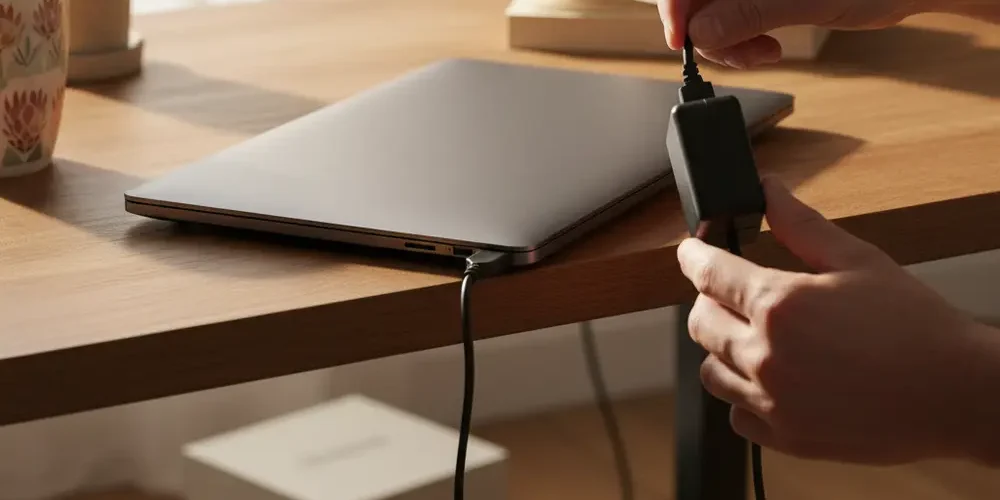
Your laptop failing to power on can be stressful because it blocks work, school, banking, and access to your files. The good news is that many no-power and black-screen cases can be narrowed down in about 10 minutes without tools.
This checklist helps you separate a simple power delivery problem from a screen or Windows problem, and it shows what to record before you contact a technician. By the end, you should know whether to keep troubleshooting, claim warranty or returns, or sell the laptop as-is.
Note for South Africa:
- If you had recent load shedding, a trip, or a suspected surge, treat power as the first suspect and keep safety in mind.
- Keep proof of purchase, serial number photos, and a short written symptom timeline for warranty or retailer claims.
- For certain online transactions, a cooling-off right may apply, check the details under the ECT Act Section 44 cooling-off period.
At a glance:
- In 10 minutes you will confirm if it is no power, powers on but no display, or reaches a logo but will not boot.
- You will do a safe power reset, remove peripherals, and run a short charge-wait test before deciding it is dead.
- You will capture the useful evidence, LED blink patterns, beep codes, charger details, which speeds up a repair quote or warranty claim.
- You will use a simple decision point to choose repair, warranty or return, or selling the laptop as-is in South Africa.
Key takeaways:
- Most first steps are about isolating power, not opening the laptop.
- Lights and fan noise often mean it is not a full power failure, it may be display or Windows.
- Stop immediately for swelling, smell, heat, or liquid, then get professional help.
Safety first, what not to do
Start with safety, especially if the laptop was recently charging, dropped, or exposed to liquid. Do not keep retrying power-on if you notice heat, smell, smoke, popping sounds, or a visibly swollen case. Do not puncture, press, or heat a swollen battery area.
- Swollen battery or bulging bottom cover, stop using the device, unplug it, and do not store it under pillows or in direct sun.
- Burning smell or unusual heat, unplug immediately and move it to a non-flammable surface.
- Liquid exposure, power off if possible, unplug, and do not try to charge it to see if it works.
- Cracked charger, frayed cable, or sparking plug, do not keep testing, replace the adapter first.
- Repeated clicking, beeping, or rapid LED flashing, note the pattern and stop forcing restarts.
10-minute checklist, start here
This is a timed flow. If a step reveals a clear issue, you can stop early and move to the decision section.
If you’re new
- Work on a table with good light, not on a bed or couch.
- Use only the original charger if you have it, or a known compatible replacement.
- Look for any LED or sound, even faint fan noise matters.
- Write down what you see as you go, it helps later.
- If you feel unsure at any step, pause and ask for help via our contact page.
If you have done this before
- Start by deciding which bucket fits, no power, some power but black screen, or logo then no boot.
- Do a proper power reset, then test AC-only with peripherals removed.
- Try a known-good wall socket and avoid multi-plugs you do not trust.
- Capture LED blink patterns and any beep codes before you change anything else.
- Only attempt Windows steps if you are sure it is powering on.
Minute 0 to 2: Confirm the power source and charger
Plug the charger into a different wall socket that you know is working. If you are using an extension or surge strip, bypass it for the test. Check whether the charger has an indicator light, if it does and it is off, suspect the adapter or the cable.
- Check the charger tip, it should fit firmly and not wiggle.
- Check the DC-in port on the laptop for debris or looseness.
- If the charging light is not on, try another wall socket before you conclude the laptop is dead.
Minute 2 to 3: Remove everything external
Disconnect all USB devices, memory cards, external drives, hubs, and external monitors. Leave only the charger connected. Some laptops will not boot cleanly with a faulty peripheral or storage device attached.
Minute 3 to 5: Power reset or hard reset, drain residual power
A power reset drains residual electricity and can clear a stuck power state. A common safe pattern is to disconnect AC power, then press and hold the power button for about 20 seconds, then reconnect AC and try powering on. HP documents a forced reset approach for no-power and no-boot symptoms on its support site HP forced reset steps.
- Unplug the charger from the laptop.
- If your battery is removable, remove it, do not force anything.
- Press and hold the power button for about 20 seconds.
- Reconnect the charger, do not connect USB devices yet.
- Try powering on and watch for LEDs, fan noise, and screen changes.
Minute 5 to 6: Charge-wait test for deep discharge
If the battery is deeply discharged, you may see no immediate signs of life. A practical next move is to leave it on charge for 15 to 30 minutes, then retry power on. HP mentions allowing time for charging in consumer troubleshooting guidance charge-wait test guidance.
Minute 6 to 8: Decide which symptom bucket you are in
Now separate the problem into one of three buckets, because the next steps differ. iFixit suggests starting by checking for any signs of power such as LEDs and fan noise, then branching based on what you observe laptop won’t turn on troubleshooting steps.
| What you observe | Likely category | Best next step |
|---|---|---|
| No LEDs, no fan, no sound | No power delivery | Focus on charger, socket, port, then warranty or repair quote |
| LEDs or fan noise, keyboard lights, but screen black | No display or Windows black screen | Try display shortcuts, external display test, then Windows steps |
| Logo appears, then stuck or loops | Boot problem | Try Windows Recovery basics, document errors for a technician |
Minute 8 to 10: Capture evidence for support or repair
Before you keep trying random fixes, record the details that matter. This helps a shop diagnose faster and helps you explain the issue clearly in a warranty ticket.
- Any LED blink pattern, count the blinks and note the colour.
- Any beep codes, note how many and whether it repeats.
- Whether it works on AC-only, battery-only, or neither.
- Charger details, brand, model, and rated output printed on the adapter label.
- Recent events, drops, liquid, updates, travel, or storage in a hot car.
Common mistakes
- Assuming it is dead because the screen is black, when it is actually running.
- Testing on a questionable multi-plug during load shedding instead of a known-good socket.
- Plugging in every peripheral again while troubleshooting, which keeps adding variables.
- Holding the power button repeatedly without doing a proper power reset.
- Opening the laptop immediately, which can void warranties and add risk.
- Continuing to charge after you notice swelling, heat, or smell.
If there are lights or fan noise but the screen stays black
If you hear the fan, see keyboard lights, or the power LED turns on, the laptop is likely receiving power. The issue may be the screen, a sleep state, a graphics driver, or Windows not drawing the desktop. Keep it simple, you are trying to confirm whether you can get any video output.
Quick Windows display and driver checks
First, increase brightness and disable any external display confusion. Then try a graphics reset shortcut that can recover from a driver hang. A well-known Windows shortcut is Win+Ctrl+Shift+B, which can reset the graphics driver, and is commonly suggested for black screen scenarios Windows black screen keyboard shortcuts.
- Press the brightness up key several times.
- Try Win+Ctrl+Shift+B once, then wait 10 seconds.
- Try Ctrl+Alt+Del, if you see a security screen, Windows is alive.
- Connect to an external monitor or TV with HDMI if you have one, then use the display toggle shortcut your laptop supports.
If Ctrl+Alt+Del works but the desktop never appears, Task Manager can sometimes help. In Windows 11 black screen cases, Microsoft support forum replies often mention opening Task Manager and running explorer.exe, which can restore the desktop shell run explorer.exe from Task Manager.
- Press Ctrl+Shift+Esc to open Task Manager.
- If it opens, select File, then Run new task.
- Type explorer.exe and run it.
If you get video on an external screen but not on the laptop display, the laptop may have a panel, cable, or backlight problem. At that point, stop forcing restarts and consider a repair quote, especially if you need the laptop for work and cannot risk making it worse.
If it reaches a logo but won’t boot Windows
Seeing a brand logo means the laptop is powering on and completing at least part of its startup checks. The problem is now more likely storage, Windows startup, or a recent change. Your goal is to avoid data loss and gather clear notes for a technician.
Windows recovery environment basics and what to document for a technician
If Windows fails to start multiple times, many systems will show recovery options automatically. If you can reach recovery menus, do not rush into reset or reinstall unless you are sure you have backups. Focus on non-destructive options first, such as Startup Repair.
- Write down any exact error codes or messages you see.
- Note whether it loops, freezes, or powers off by itself.
- Note if the problem started after an update, power cut, or new software install.
- If you can reach recovery options, try Startup Repair before drastic options.
If your files are important, prioritise data recovery over repeated boot attempts. If you can remove the storage device safely and you know how, consider asking a pro to back up your data before deeper repair, our professional services page explains the kind of help to request.
When it’s better to repair, claim warranty, or sell
The right choice depends on risk, time, and how much you rely on the machine. Avoid guessing component failures, instead use decision criteria that apply to most laptops. If you need reliable uptime for work or studies, time-to-fix often matters as much as the fix itself.
- Claim warranty or returns if the laptop is still covered, you have proof of purchase, and you have not opened it.
- Repair if the laptop is otherwise a good fit for your needs, your data matters, and symptoms suggest a contained issue like a charger, port, screen, or Windows corruption.
- Sell as-is if it is older, you need a replacement fast, or you suspect a board-level fault and do not want uncertain repair time.
If you are considering selling, decide what you can honestly disclose. Buyers and trade-in services will ask whether it shows any lights, whether it charges, and whether it reaches a logo. You can start a sale request via sell your items once you have completed the evidence steps above.
A quick repair vs sell decision checklist
- Is your data recoverable without the laptop booting fully?
- Do you have the original charger and proof of purchase?
- Do you see any power signs at all, LEDs, fan, or logo?
- Is downtime costing you more than the device is worth to you?
- Would you rather put repair effort into a newer machine?
If you need a replacement quickly, you can also browse options in our shop while you decide what to do with the faulty unit.
South Africa notes, warranty and returns basics
Two things often come up in South Africa, implied warranty rights under the CPA and cooling-off for certain online transactions under the ECT Act. This is not legal advice, but it helps to know what questions to ask the retailer or manufacturer. Always check the terms on your invoice and the brand warranty page for your exact model.
CPA implied warranty in plain language
In general, the CPA framework includes an implied warranty of quality, and remedies can include repair, replacement, or refund depending on the situation. For a careful discussion of the implied warranty concept and remedies, see the CGSO advisory note on SAFLII implied warranty of quality CPA South Africa. Keep your paperwork and communicate in writing where possible.
- Keep the proof of purchase and serial number.
- Take photos or a short video of the symptoms, especially LED blink patterns.
- Ask what testing will cost before you authorise chargeable work.
Online cooling-off, when it might apply
If the laptop was bought online in a covered transaction type, you may have a right to cancel within seven days after receiving the goods, subject to the rules in the law. The primary text is set out in the ECT Act Section 44 cooling-off period, including details like return costs and timing. If you are unsure, ask the retailer for their written process and time frames.
Data privacy steps before repair or selling
If the laptop shows any signs of life, try to protect your accounts and personal data early. Even when the laptop will not boot, storage may still be readable by a technician, so take a cautious approach. If you can log in, sign out of browser sync, password managers, and messaging apps before handing it over.
- If you can access Windows, back up your files and sign out of key accounts.
- Disable device encryption recovery exposure by securely storing your recovery keys where appropriate.
- Remove saved payment methods from browsers if possible.
- If the drive is removable and you know how to remove it safely, consider removing it before sale, or tell the buyer it is not included.
- Do not share your Windows password with a repair shop, create a temporary local account if you must provide access.
Frequently asked questions
My laptop won’t turn on and there is no charging light, is it definitely dead?
Not necessarily. First confirm the wall socket, bypass extensions, and try a proper power reset, then leave it charging for 15 to 30 minutes before retesting. If there are still no LEDs or fan sounds, the likely issue is power delivery, the charger, port, or internal power circuit, and it is time for a warranty route or repair assessment.
How do I know if it is a black screen issue instead of a power issue?
If you see any lights, hear a fan, or the keyboard backlight turns on, it is probably not a total power failure. Try brightness up, Ctrl+Alt+Del, and Win+Ctrl+Shift+B. If an external monitor shows a picture, the laptop display path is the suspect, not the power system.
Is it safe to keep trying to power it on during load shedding?
If you suspect unstable power, avoid repeated power cycling and do not keep swapping plugs in a hurry. Use a known-good socket, and if you have a UPS or inverter, follow its safe usage instructions. If you smell burning or notice heat, stop immediately and unplug.
Should I open the laptop to disconnect the battery?
If the battery is not designed to be user-removable, opening the laptop can void warranty and adds risk, especially if you are not experienced. Use the external power reset steps first. If there is swelling, smell, or liquid, do not open it, seek professional help.
When does it make more sense to sell the laptop as-is?
Selling as-is can make sense when you need a working replacement quickly, the laptop is older, or the symptoms suggest a complex fault with uncertain turnaround time. It can also make sense if your data is already backed up and you prefer not to invest more time. If you sell, disclose the exact symptoms you observed and what you tried.
Next steps and quick summary
- Do a safe power reset, test AC-only, and run a short charge-wait test.
- Sort the symptom into no power, powers on but black screen, or logo then no boot.
- Record blink patterns, beeps, charger details, and recent events.
- Use warranty or cooling-off routes where they apply, keep proof and communicate in writing.
- If repair risk and downtime feel too high, consider selling as-is with honest disclosure.
This is educational content, not financial advice.

