
Test a Used GPU Safely
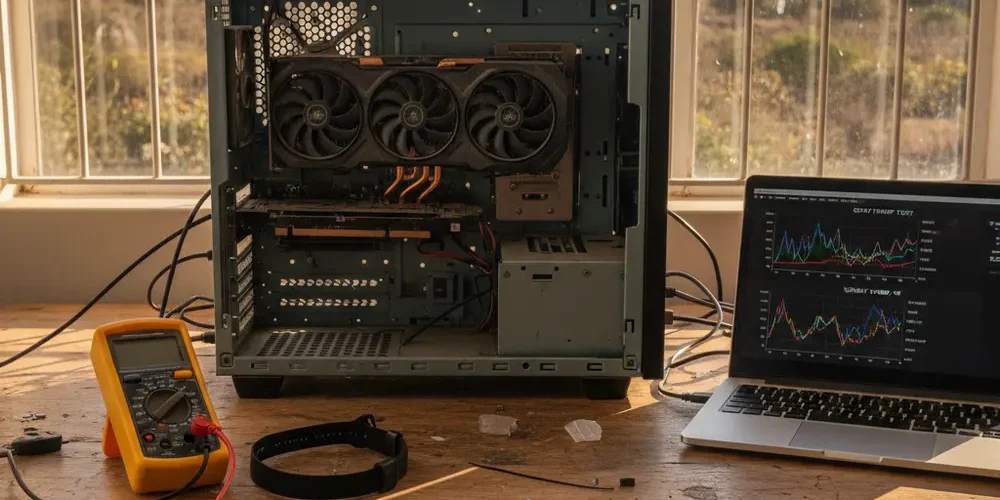
Selling a used GPU is easiest when you can prove it is stable, safe, and accurately described. A quick boot and a single benchmark run are not enough to protect you or the buyer.
In this guide you will build a clean testing baseline, run a structured set of checks, and capture evidence you can attach to a listing. You will also learn what results are meaningful, what is noise, and what you should disclose when a card has a history like mining or undervolting.
Note for South Africa:
- Load shedding and unstable mains power can cause crashes that look like GPU faults, test on a stable supply where possible.
- Second-hand disputes often come down to documentation, take photos, logs, and timestamps before you ship.
- If a GPU fails and is not economical to fix, use responsible recycling options like South Africa e-waste drop-off points listed by EWaste Africa.
At a glance:
- Start with safety, a known-good system, and a clean driver baseline.
- Do a visual inspection first, because many deal-breakers are physical.
- Run a mixed workload test battery, including a VRAM-focused test, not only a benchmark.
- Package your results into a buyer proof pack, so your listing is credible and disputes are easier to resolve.
Key takeaways:
- No single test proves a GPU is perfect, you need a repeatable sequence and evidence.
- VRAM errors, artifacts, and driver resets are signals to stop and investigate, not to hide with tweaks.
- Honest disclosure, photos, and logs protect both buyer and seller.
Before you test, safety and setup
Before you push a GPU to full load, make sure the test environment will not create false failures. A marginal PSU, poor airflow, or a loose power connector can look like a defective card. Your goal is a known-good platform so any instability points back to the GPU, not the rest of the system.
Start with physical safety. Power the PC off, unplug it, and discharge by pressing the power button for a few seconds. Avoid working on carpet, and consider an anti-static wrist strap if you have one.
Hardware prerequisites that reduce risk
- PSU headroom: Use a quality PSU with enough capacity, do not run right on the edge. If you are unsure, borrow a known-good PSU for testing.
- Correct power cables: Do not use questionable adapters. Make sure PCIe power plugs are fully seated and not hot to the touch.
- Airflow: Test with the case side panel on if that is how the buyer will use it, but ensure intake and exhaust are not blocked.
- Stable power: If your area has frequent dips, test on a stable circuit or UPS. Sudden dropouts can corrupt driver installs and crash stress tests.
- Known-good display cable and monitor: A damaged cable can cause flicker that looks like artifacting.
Choose a sensible test platform
Use a motherboard, CPU, and RAM you trust, ideally a machine that has been stable with another GPU. Keep CPU and RAM overclocks off during GPU testing. If you want to sell faster with less back-and-forth, consider offering to test and sell through a service flow on Sell Your PC, starting at Sell your items submission.
Common mistakes
These are the patterns that most often lead to wasted time, accidental damage, or misleading results.
- Running a single benchmark once and calling it stable.
- Changing multiple variables at once, for example drivers, undervolt, and thermal paste, then not knowing what helped.
- Ignoring physical inspection, then discovering later that a fan is wobbling or a connector is burnt.
- Masking crashes by changing Windows TDR settings instead of finding the root cause.
- Testing during power instability, then blaming the GPU for a system-wide issue.
If you’re new
Start with a conservative plan. You can still produce buyer-grade evidence without advanced tuning.
- Do the full visual inspection before powering on.
- Use a clean driver install and default GPU settings.
- Log temperatures and fan behaviour while you test.
- Stop at the first sign of artifacts or repeated driver resets.
- Document everything, even if you decide not to sell.
If you have done this before
If you are comfortable with tooling, add deeper checks that catch intermittent faults.
- Run a VRAM-focused test and a long looped 3D load.
- Compare behaviour on two driver versions if results are borderline.
- Check for BIOS oddities and disclose any modifications you find.
- Capture sensor logs, not only screenshots, so you can prove stability over time.
- For supported NVIDIA cards, check ECC state and error counters.
Visual inspection checklist
Many GPUs fail due to physical issues, and you can often spot them in minutes. Do the inspection in good light, take photos as you go, and keep a record of serial numbers for your proof pack. If you are buying, insist on these photos before you pay.
| What you see | Why it matters | What to do next |
|---|---|---|
| Corrosion, white residue | Liquid exposure risk | Assume higher failure risk, disclose, or avoid |
| Burn marks, melted plastic | Overcurrent or poor contact | Do not stress test, inspect power plugs and PCB |
| Fan wobble or scraping | Cooling reliability issue | Fix before sale, or price accordingly |
| Missing screws, bent bracket | Previous disassembly | Check pads, paste, and mounting pressure |
| Damaged PCIe edge | Intermittent contact | Do not ship, test in another slot if available |
Quick inspection steps you can tick off
- Check the PCIe edge connector for scratches, burns, or missing plating.
- Look for bulging, leaking, or cracked components on the PCB.
- Inspect the power connectors for discoloration and loose pins.
- Spin each fan gently, it should turn smoothly without grinding.
- Check the heatsink for dust mats that block airflow, especially between fin stacks.
- Confirm the display outputs are not loose or corroded.
If the card is dirty, clean it safely before testing. Use compressed air outdoors if possible, and hold the fans to prevent overspin. Avoid liquids unless you are experienced, and never power on until the card is fully dry.
Identify the card properly
Misidentification is a common problem in second-hand listings. You want to confirm the model, VRAM amount, and basic device identity so the buyer gets what they expect. This also helps you pick appropriate test settings, like resolution and VRAM load.
What to confirm before you run heavy tests
- Model name and vendor: Confirm the exact model on the shroud sticker and in software, not only the listing title.
- VRAM capacity: Make sure the reported VRAM matches what the SKU should have, mismatches can indicate confusion or issues.
- Device ID and BIOS info: Record the identifiers shown by your tools, because buyers may ask for proof.
If you suspect a modified BIOS, treat it as a disclosure item. A modified BIOS is not automatically bad, but it changes expectations and can complicate support. Your safest route is to sell as-is with clear notes, or revert only if you can do so confidently and honestly.
Clean driver baseline
Driver problems can mimic failing hardware. A clean baseline is especially important if the GPU came from another system, a mining rig, or a previous owner with multiple driver installs. The aim is to reduce variables before you stress the card.
When a normal reinstall is enough
- You are moving between minor driver revisions on the same GPU vendor.
- The system has been stable and you are not seeing crashes, black screens, or repeated driver resets.
- You are not switching between AMD and NVIDIA on the same Windows install.
When DDU is appropriate
Display Driver Uninstaller is commonly used when you need to remove driver remnants and start fresh. Use the official DDU download from Wagnardsoft Display Driver Uninstaller (DDU) so you avoid bundled junk.
- Switching GPU vendor on an existing Windows installation.
- Persistent driver crashes after a normal uninstall and reinstall.
- Suspicion that past installs or tweaks left the system in a broken state.
Be careful with advice you give buyers. You can describe your own testing procedure, but do not instruct registry hacks as a fix for timeouts. Microsoft documents TDR keys as a driver development and debugging area, not a general consumer fix in Windows TDR registry keys documentation.
Run a structured stability test battery
Structure matters because different faults appear under different loads. A GPU can run one benchmark fine but crash during a VRAM-heavy workload, or fail only after heat soak. Use a repeatable sequence and keep notes so you can rerun after changes.
Suggested test sequence and minimum times
- Idle baseline (10 minutes): Let the system sit, confirm the desktop is stable, check fan stop behaviour if the card supports it.
- Light 3D load (10 to 15 minutes): Run a lighter benchmark or a game menu loop to warm up gradually.
- Sustained 3D load (30 to 60 minutes): Loop a repeatable benchmark run. UNIGINE explains its presets and repeatable runs in its UNIGINE benchmark documentation resources.
- VRAM-focused test (30 to 60 minutes): Use a tool designed to stress video memory and watch for errors.
- Real game session (30 to 60 minutes): Use a stable title you know, because real engines can trigger different code paths than synthetics.
These times are practical, not a guarantee. If you want to claim stability with confidence, longer is better, but do not promise lifetime reliability based on any single day of testing.
Practical VRAM testing options
For consumer GPUs, VRAM error detection is not always as clear as CPU RAM testing. Tools can report errors, but the cause can still be broader than a single memory chip. The open-source VRAM test memtest_vulkan project documentation explains typical limitations and error interpretation.
- If a VRAM test reports errors quickly at stock settings, treat it as a serious red flag.
- If errors appear only when clocks jump or when the card heats up, suspect stability margins, cooling, or power delivery.
- If a tool cannot allocate much VRAM, note that in your proof pack, it affects what you actually tested.
Log and interpret sensors
Logging matters because a screenshot can hide instability that happens in-between. Record temperatures, clocks, fan speeds, and power behaviour during each stage. If you change anything, like repasting or setting an undervolt, rerun the same sequence.
- Temperature trend: Watch whether the card stabilises or keeps climbing during heat soak.
- Clocks and throttling: If clocks drop hard under load, it can indicate thermal limits, power limits, or instability.
- Fan behaviour: Look for fans that ramp erratically, stall, or cannot reach expected RPM.
- Power draw behaviour: Sudden drops can match driver resets or power connector issues.
Avoid publishing personal data in screenshots. For example, do not include your Windows username, email notifications, or any unrelated system identifiers. If you need help interpreting logs, ask via Contact us support.
Error signals to watch for
When you test used GPUs, the failure modes are usually obvious once you know what to look for. Your job is to stop early enough to avoid damage, and to record what happened so you can be honest in the listing.
- Artifacts: Sparkles, checkerboards, flashing triangles, or corrupted textures.
- Driver resets: Screen goes black then returns, with a driver recovered message.
- System resets: Sudden reboot under load, often power related but not always.
- Hard freezes: No response, requires power button hold.
- Black screens with audio: Can indicate driver, cable, or GPU output issues.
If crashes happen only at high load, retest with a different PSU and power cable run if possible. If crashes persist in a known-good system at stock settings, do not sell it as stable. Consider disposal or parts sale with clear disclosure, or ask about professional services at Professional services options.
Special cases, ex-mining cards, undervolts and BIOS mods
In South Africa it is common to see GPUs that have mined or have been tuned for efficiency. This does not automatically mean the card is bad, but it changes what you should test and what you should disclose. Your buyer cares most about stability, thermals, and whether the card matches expected performance.
How to test a GPU after mining
- Inspect fans and bearings closely, mining runs are often 24-7 and fans wear.
- Focus on VRAM stability tests, mining is memory-heavy and can expose marginal VRAM.
- Check for dust buildup and uneven thermal contact, then verify temperatures under sustained load.
- Be cautious about assuming factory thermal pads are still in place if the card was opened.
Undervolts and overclocks
For selling, test at stock first. If you want to include an undervolt profile, present it as optional and provide stock results as the baseline. A buyer may run different workloads, different ambient temperature, or different case airflow.
- Disclose any undervolt or custom fan curve you used during testing.
- Do not ship a card with an aggressive overclock applied, it can create avoidable returns.
- If stability depends on reduced clocks, be explicit, and price accordingly.
BIOS modifications, what you can verify and how to communicate it
You can often see BIOS version strings and identifiers in GPU tools, but do not claim a BIOS is modified unless you have clear evidence. If you have a BIOS dump and a known reference, you can state that you compared them, otherwise describe what you observed. If you are unsure, use cautious wording like BIOS appears non-standard based on tool output.
NVIDIA ECC, for supported cards only
Some professional NVIDIA GPUs support ECC and expose error counters. If you are selling such a card, it is worth checking and disclosing ECC state and whether any errors were logged.
- On Windows, NVIDIA describes where to check ECC state in the Control Panel help guide check ECC state in NVIDIA Control Panel page.
- On systems with the NVIDIA tools available, nvidia-smi can report telemetry and ECC details for supported devices, see nvidia-smi ECC errors documentation.
If ECC errors show up, do not hide them. It can indicate memory issues, and at minimum it is information a buyer should have before committing.
Document results for buyers
Documentation is what turns your testing into buyer confidence. It also protects you if a buyer claims the GPU arrived faulty due to mishandling or shipping damage. Keep your proof pack tidy and easy to scan.
Build a buyer proof pack
- Clear photos of the GPU from all sides, including connectors and the PCIe edge.
- Photo of the GPU installed and powered in the test system.
- Screenshots of identification details, model, VRAM, driver version, and BIOS string if visible.
- Sensor logs or summaries showing load temperatures and fan behaviour during sustained testing.
- Benchmark result screenshots with the test settings visible.
- Notes: ambient temperature estimate, case type, and whether side panel was on.
If you are selling through the Sell Your PC ecosystem, link buyers to your general process and policies via About us information and keep communication in one thread for timestamps.
Packaging and shipping tips for South Africa
- Use an anti-static bag, then bubble wrap, then a rigid box with padding on all sides.
- Support the GPU so it cannot flex, especially heavier cards.
- Take photos of the packed item before sealing, and again with the courier waybill.
- Avoid shipping immediately after a hot stress test, let the card cool fully first.
Pre-sale checklist you can paste into your listing
Use this checklist as your repeatable workflow. It is designed to be easy to copy into a marketplace listing or invoice notes, and it sets clear expectations without overpromising.
1) Safety and prerequisites
- Test system stable with another GPU.
- PSU has adequate headroom, correct PCIe power cables used.
- Stable power source used for testing.
- Case airflow verified, fans unobstructed.
2) Physical inspection
- No corrosion or liquid residue visible.
- No burnt connectors, no melted plastic.
- Fans spin smoothly, no wobble, no scraping.
- PCIe edge connector clean, no burn marks.
3) Identification and baseline
- Model and VRAM confirmed in software.
- Driver version recorded.
- GPU tested at stock clocks and stock power limits first.
4) Test sequence and pass criteria
- Idle 10 minutes, no flicker, no driver resets.
- Sustained 3D load 30 to 60 minutes, no artifacts, no crashes.
- VRAM-focused test 30 to 60 minutes, no reported errors.
- Real game session 30 to 60 minutes, stable frame pacing, no black screens.
5) Evidence captured
- Photos, serial area photo if available without exposing buyer data.
- Benchmark screenshots and settings.
- Sensor log or summary of temps, clocks, fans during load.
- Notes on ambient temperature and test conditions.
6) Disclosure template (copy and edit)
Tested in a known-good system at stock settings. No artifacts or crashes observed across mixed workloads. Any maintenance performed, for example repaste, new fans, or cleaning, is listed here. Any known issues are listed here. This is a used item, results reflect the test conditions above and are not a lifetime guarantee.
South African consumer rights, private sale vs supplier
How you sell matters. If you sell as a business or supplier, buyers may have stronger rights than in a private peer-to-peer sale. The Consumer Protection Act is not simple, so treat this section as informational, not legal advice.
A plain-language overview can be found via the Western Cape Government Consumer Protection Act overview page. For deeper context on second-hand goods disputes and CPA principles, SAFLLI hosts tribunal decisions like South African case law on second-hand goods and the CPA reference.
- Private individual sale: You should still describe the item honestly, but the legal framework and remedies can differ.
- Sale by a supplier: Expectations around acceptable quality and remedies are more formal, and documentation becomes critical.
- Best practice either way: Disclose known defects in writing, and keep your proof pack.
What to do with a GPU that fails testing
If a GPU fails, decide quickly whether it is worth troubleshooting, repairing, selling for parts, or recycling. Repeated stress testing on a clearly faulty card can make damage worse. If you do attempt fixes, change one variable at a time and retest with the same sequence.
- Simple fixes: Reseat the GPU, reseat power cables, try another PCIe slot, and test with a known-good PSU.
- Cooling fixes: Cleaning and fan replacement may help, repasting and pad work should be done carefully and disclosed.
- Do not do: Suggest registry edits as a buyer fix for repeated driver timeouts, it masks symptoms.
- End of life: Use responsible recycling options like where to recycle old PC parts in South Africa drop-off listings.
Frequently asked questions
How long should I stress test a used GPU before selling?
Long enough to cover heat soak and different workloads. A practical minimum is an idle check, a sustained 3D loop, a VRAM-focused test, and a real game session, with at least 30 to 60 minutes for the longer stages.
Are VRAM test errors always a bad VRAM chip?
No. Errors can be triggered by VRAM instability, but also by core instability, power delivery issues, overheating, or driver problems. Treat errors as a reason to stop and investigate, and disclose results if you sell for parts or as faulty.
Should I change Windows TDR settings to stop driver timeouts?
As a seller, avoid presenting TDR registry edits as a fix. TDR exists to recover from GPU hangs, and Microsoft documents the registry keys for debugging and development scenarios in its Windows TDR registry keys reference.
How can I tell if a GPU BIOS was modified?
You can record the BIOS version string and identifiers shown by GPU tools, and compare them to known references if you have them. If you cannot verify, do not claim modification as a fact, describe what you observed and sell with careful wording.
What evidence should I include in my listing to reduce disputes?
Include clear photos, identification screenshots, driver version, stress test screenshots, and a short summary of conditions like ambient temperature and test duration. Avoid sharing personal data, and keep original logs and timestamps in case you need to respond later.
Summary
- Inspect the GPU physically before you power it up.
- Test in a known-good system with a clean driver baseline.
- Use a mixed workload battery, including a VRAM-focused test.
- Log sensors and capture a proof pack for the buyer.
- Disclose mining history, modifications, and any issues found.
This is educational content, not financial advice.

